Map a form to DHIS2#
To export submissions to DHIS2, each question of a form version is linked ("mapped") to a DHIS2 data element. This page explains how to do it on the mapping page of a form version.
Before you start:
- the account needs a DHIS2 data source with its credentials, see Set up the DHIS2 login in IASO;
- choose the mapping type (Aggregate, Event or Event Tracker), see which mapping type to choose.
Open the mapping page#
In Forms > DHIS2 mappings, click Create to map a form version, or open an existing mapping.
When nothing is selected, the page shows the General information of the mapping:
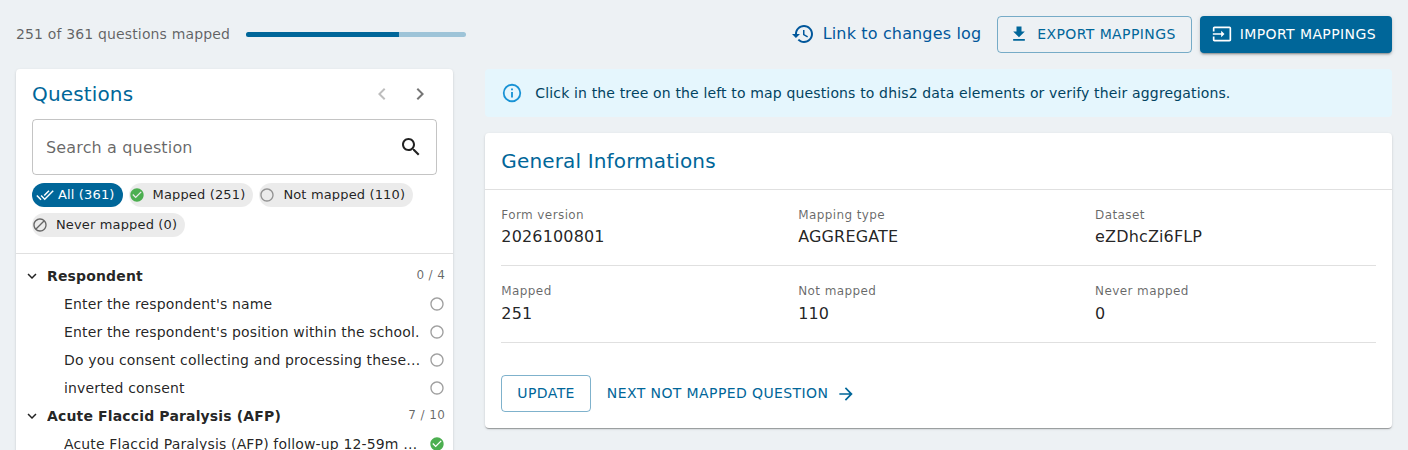
- at the top, how many questions are mapped, the Link to changes log, and the Export mappings / Import mappings buttons (see Import and export DHIS2 mappings);
- the form version, the mapping type, and the DHIS2 dataset or program;
- how many questions are Mapped, Not mapped and Never mapped;
- for Event and Event Tracker mappings, the Event date source: the date of the DHIS2 event is the creation date of the submission, or the start of its period. Click Update to save it;
- Next not mapped question opens the first question still to map.
Find a question#
The questions of the form are listed on the left, in their groups.
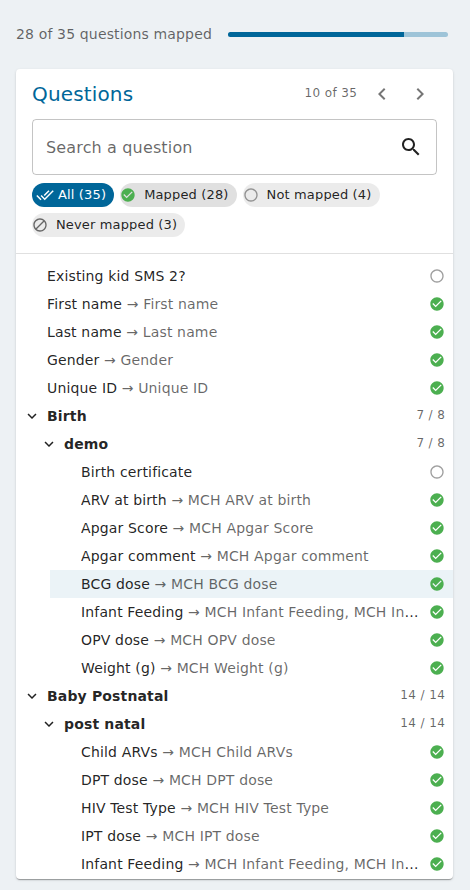
- Each group shows how many of its questions are mapped (e.g.
7 / 8). - Each question shows its status: a green check when mapped, an empty circle when not mapped yet, a crossed circle when it will never be mapped. A mapped question also shows its DHIS2 data element after the arrow.
- Hover a question to read its full label, name and type.
To find a question:
- type in Search a question: the label, the name of the question or its DHIS2 data element (case and accents are ignored). Searching a group name shows all the questions of the group;
- click a status chip to hide those questions, e.g. hide Mapped to see only what is left to do. All shows everything again.
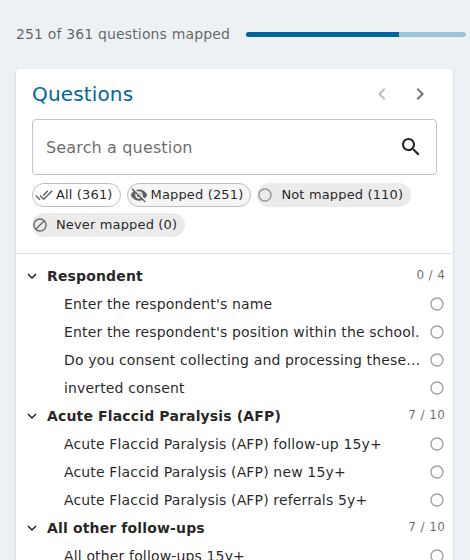
To go through the questions one by one, use the arrows next to Questions, or Alt+↓ and Alt+↑. They follow the questions currently listed, so you can filter first. Press Esc (or the arrow before the question name) to go back to the general information.
Map a question#
Click a question to open it:
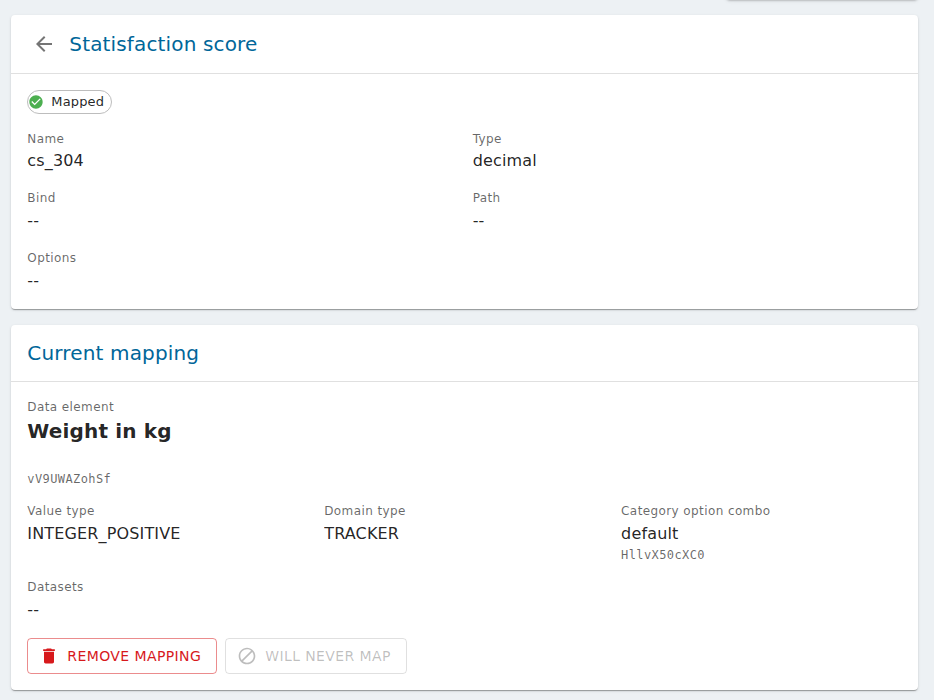
- the first card describes the question: its status, group, name, type, bind, path and options;
- Current mapping shows the DHIS2 data element it is mapped to, with its id, value type, domain type, category option combo and datasets.
To map the question, in Change the mapping:
- search the DHIS2 data element by its name, code or id. For an Event Tracker mapping, choose first between a Program data element and a Tracked Entity Attribute;
- check the Proposed mapping. A red message warns when the same data element (and category option combo) is already used by another question;
- click Confirm.
Some questions don't need to go to DHIS2 (notes, intermediate calculations, metadata...): click Will never map. They are counted apart and left out of mapping exports; an import shows them as conflicts instead of overwriting them. To undo it, map the question.
Remove mapping removes the current mapping: the question is not mapped anymore.
Questions with choices#
A "select all that apply" question is mapped choice by choice: open the question in the tree and map each of its choices.
Send the org unit of the submission (Event Tracker)#
When the proposed data element or attribute has the value type ORGANISATION_UNIT, a Use instance property to fill in this answer list appears:
- Use the value from the form's answer (default): the answer to the question is sent;
- Instance orgunit: the DHIS2 id of the org unit of the submission is sent instead of the answer.
Note
The value is only sent when the question is answered in the submission. Map a question that is always answered (e.g. a hidden or calculated field).